
Warenkorb ist leer


 Bürobedarf
 Bücher
 Lernen & Bildung
 Schulmaterial


AI Media Generation - Advanced Long Video
 AI Media Generation - Advanced Long Video
Use Advanced Long Video when you want a multi-scene product story, brand presentation, or banner video with more control than Simple Studio.
Before you start: Long videos can create multiple jobs. Add enough funds before starting and review the final video before using it.
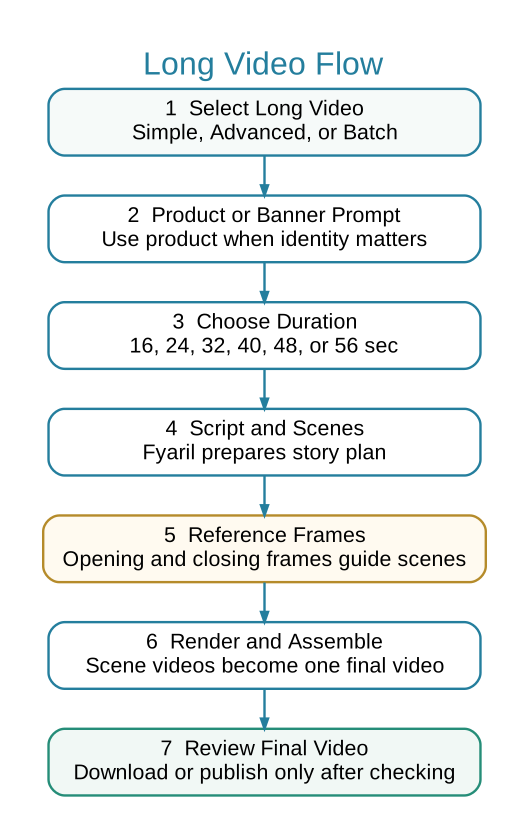
 Long Video Flow
 When to Use Advanced Long Video
- You need a longer story with scenes, script, and assembled output.
- You want to choose total duration: 16, 24, 32, 40, 48, or 56 seconds.
- You need product-focused storytelling, not just one short clip.
- You need to inspect scene logs and final assembled video.
 Steps
Steps
- Open Marketing > AI Media > Advanced Long Video.
- Select product or banner prompt path.
- Select the correct long video preset.
- Choose total duration.
- Use custom intent only when you need a specific story direction.
- Generate the project and watch Media Job Logs for keyframes, scenes, and final assembled video.
- Review the final assembled video before downloading or publishing.
Important Notes
- Long video generation may create script, reference frames, scene videos, and one final assembled video.
- If a scene or reference frame fails, check logs instead of starting many duplicate projects.
- For banners, use banner-specific presets.