
El carrito está vacío


 Material de oficina
 Libros
 Aprendizaje y educación
 Útiles escolares


Add Funds
 Add Funds
This guide explains how sellers can add money to their Fyaril seller account balance. A positive statement closing balance is required before using paid seller services such as AI media generation.
Important: Funds are added to your seller account only after the payment is confirmed. Online payment methods are credited after successful gateway confirmation. Bank Transfer requests are credited after admin approval.
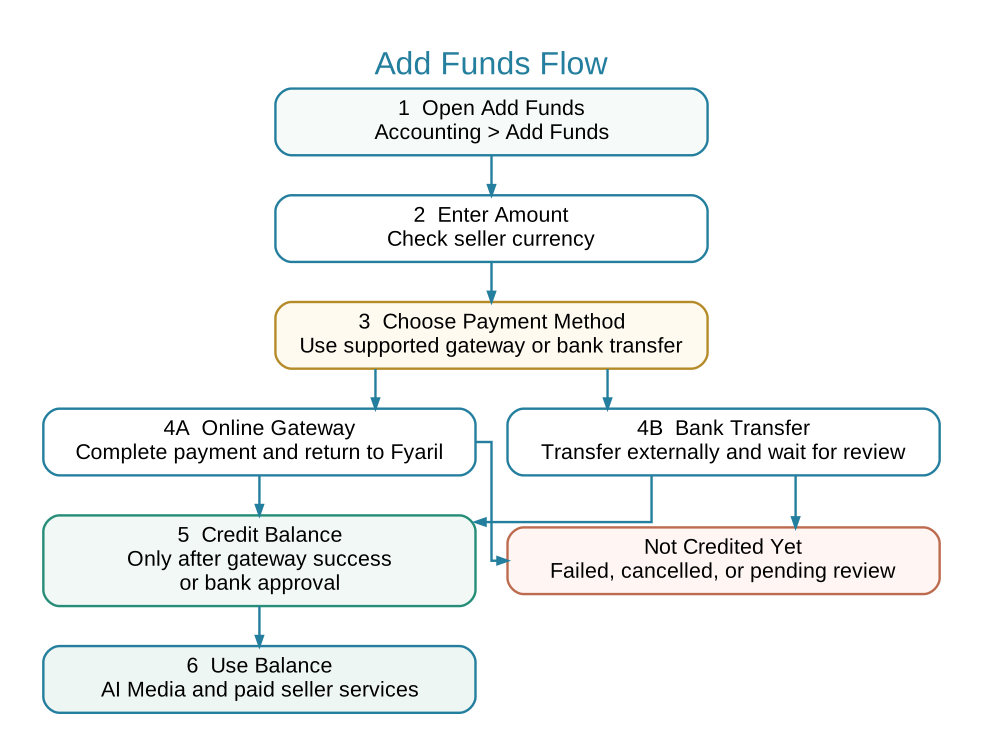
 Add Funds Flow
This flowchart shows the basic top-up path: enter amount, select payment method, complete gateway payment or bank transfer, then wait for confirmed credit.
 When to Add Funds
- Add funds before generating AI images, short videos, or long videos.
- Add funds when your statement closing balance is zero or negative.
- Add funds when Fyaril support asks you to keep balance available for paid seller services.
- Add funds when you want to avoid generation jobs stopping because of insufficient balance.
 Step-by-Step Instructions
Part 1: Open Add Funds
- Log in to your Fyaril Vendor Administration Panel.
- Go to My Seller or Accounting.
- Open Statement.
- Select the Add Funds tab.
Direct link: Open Add Funds in the vendor panel
Part 2: Enter Amount
- Enter the amount you want to add.
- Check that the currency shown on the page is your seller account currency.
- Do not continue if the currency does not match your seller account. Contact Fyaril support before paying.
Part 3: Select Payment Method
- Select one of the available configured payment methods.
- Online gateways are shown only when they support your seller currency and billing country.
- If you select Bank Transfer, submit the request and follow the bank transfer instructions shown by Fyaril.
Payment method rule: Online gateways credit funds only after successful payment confirmation. Bank Transfer does not credit immediately; it remains pending until Fyaril admin verifies and approves the transfer.
Part 4: Complete Payment
- For online payment methods, continue to the payment gateway and complete the payment.
- Do not close the browser tab until the gateway returns you to Fyaril.
- After successful payment, the top-up order is completed and your seller statement balance is updated.
- If you cancel or the gateway fails, funds are not credited.
Part 5: Check Statement and Receipt
- Return to Accounting > Statement.
- Check the transaction entry created for your top-up.
- Use the receipt or invoice link from the transaction entry when you need a payment record.
- The receipt should show the payment in the order currency used for the top-up.
Using Add Funds for AI Media Generation
AI media generation uses your seller statement closing balance. If your balance is not positive, image, video, and long-video generation can be blocked before the job runs.
- Add funds before starting batch media generation.
- For batch jobs, balance is checked before each actual media run.
- If your balance becomes insufficient during a batch, remaining jobs may wait or fail until you add funds.
- After adding funds, return to Marketing > AI Media and run the job again.
 Troubleshooting
| Issue | What to Do |
|---|---|
| No payment method is visible | Your seller currency or billing country may not be supported by the configured gateways. Contact Fyaril support. |
| Gateway payment failed or was cancelled | Try again with another available method. Funds are credited only after successful confirmation. |
| Bank Transfer is still pending | Wait for Fyaril admin approval after your transfer is verified. |
| AI generation says balance is not positive | Open Add Funds, add enough balance, then retry the media generation job. |
Best practice: Keep enough balance before starting long video or batch media generation. These workflows may create multiple paid jobs in sequence.