
Varukorgen är tom


 Kontorsmaterial
 Böcker
 Lärande & Utbildning
 Skolmaterial


AI Media Generation - Simple Studio
 AI Media Generation - Simple Studio
Simple Studio is the fastest way to create AI-generated media from your products. Use it when you want one image, one short video, or one long video without opening the advanced workbenches.
Before you start: AI media generation requires a positive seller statement closing balance. If your balance is zero or negative, open My Seller > Accounting > Add Funds and add funds before generating media.
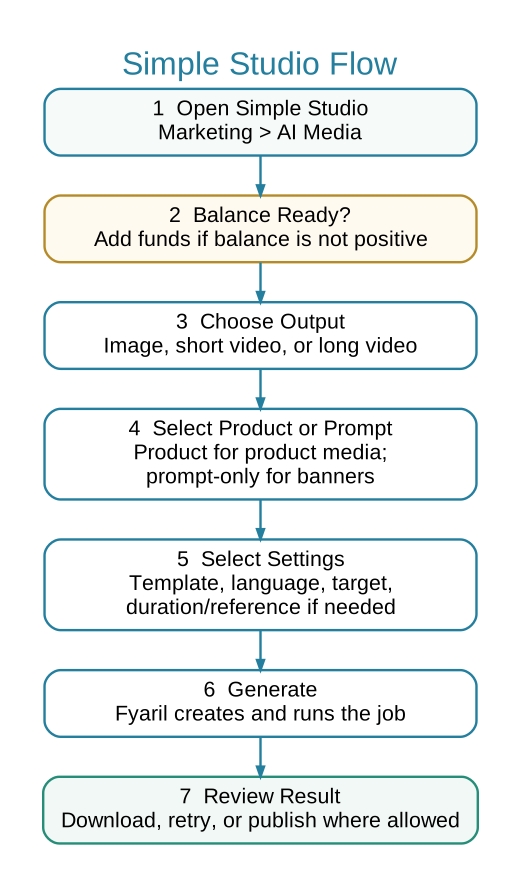
 Simple Studio Flow
This simple flow shows the normal order: open Simple Studio, check balance, choose output, select product or prompt, set options, generate, then review the result.
 When to Use Simple Studio
- Create a quick product image from an existing product.
- Create one short product video for product listing or social use.
- Create one long product video using a selected template and total duration.
- Create a prompt-only banner asset when no product reference is needed.
 Step-by-Step Instructions
Part 1: Open Simple Studio
- Log in to your Fyaril Vendor Administration Panel.
- Go to Marketing > AI Media.
- Open Simple Studio.
Part 2: Choose Product or Prompt
- Use the Product selector when the media should show or reference one of your products.
- Leave product empty only for prompt-only banner generation.
- Use Use Product Image as Reference when the product image should guide the generated media.
Part 3: Choose Output
- Select image, short video, or long video.
- Select the template or intent that best matches what you want.
- For long video, choose only the total duration.
- Select language and publish target. Vendors normally use Download only or Product listing.
 Part 4: Review the Result
- Open the media job log after submission.
- Download the asset when it is ready.
- Attach to product listing only when the result is correct and the workflow allows it.
Best practice: Simple Studio is for quick work. If you need strict control over aspect ratio, resolution, or prompt details, use an Advanced workbench.