
El carrito está vacío


 Material de oficina
 Libros
 Aprendizaje y educación
 Útiles escolares


AI Media Generation - Advanced Image
 AI Media Generation - Advanced Image
Use Advanced Image when you want more control over a single AI-generated image: product selection, preset, custom intent, aspect ratio, resolution, language, and product image reference behavior.
Before you start: Keep a positive seller balance and choose a product when the image must represent a real product.
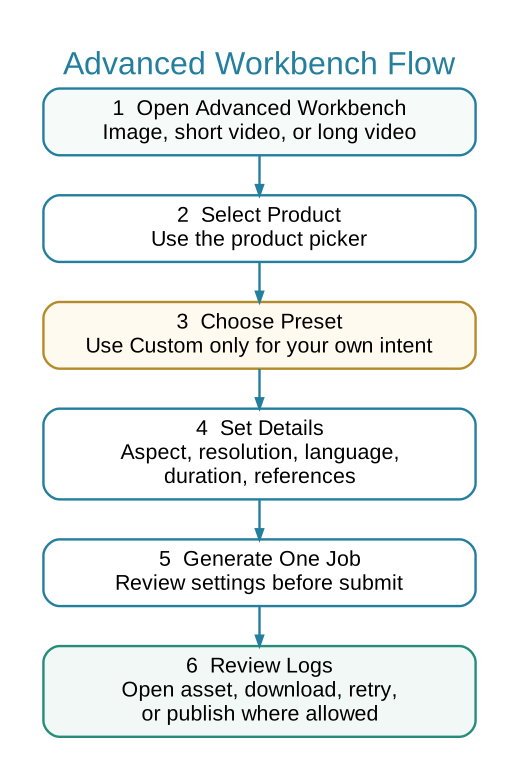
 Advanced Workbench Flow
 When to Use Advanced Image
- You need one high-quality product image.
- You need to control aspect ratio and resolution.
- You want to choose whether the product image is used as a reference.
- You want a custom intent/prompt for one image.
 Steps
Steps
- Open Marketing > AI Media > Advanced Image.
- Select the product using the product picker.
- Choose a preset or select Custom when you need to describe your own intent.
- Select aspect ratio and resolution. Matching options should be used together, such as square with square.
- Enable Use Product Image as Reference only when the product image should guide the result.
- Generate the image, then review it in Media Job Logs before downloading or attaching it to a product listing.
 Common Mistakes
- Using a product reference when you want a purely creative banner.
- Selecting an aspect ratio that does not match the intended placement.
- Publishing an image before checking product accuracy, size, text artifacts, and physical realism.