


 Office Supplies
 Books
Books
 Learning & Education
 School Supplies


Bulk Product Listing - List New Products
How to List Products in Bulk
Welcome to Fyaril! For sellers with a large catalog, adding products one by one can be time-consuming. Our Add products in bulk feature is designed to streamline this process, allowing you to add the general information for multiple products in a single category at once. This guide will walk you through the first step of the bulk upload process: adding general product details.
Video Tutorial
For a visual walkthrough of the bulk upload process, please watch our detailed video tutorial below.
Step-by-Step Instructions
This guide covers the "General" tab, which is the first of five steps in the bulk product creation process.
Part 1: Accessing the Bulk Upload Page
- Log into your Fyaril Seller Panel.
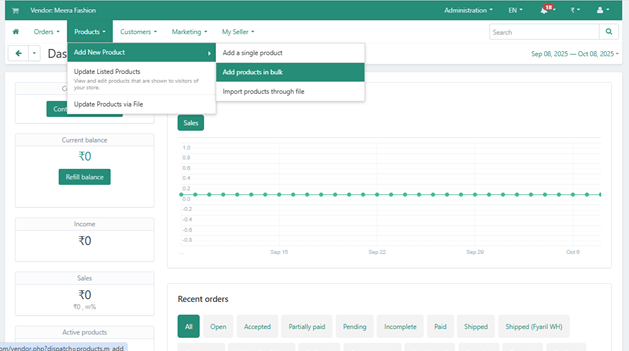
- From the main navigation menu, hover over Products, then Add New Product.
- In the submenu, click on Add products in bulk.
Part 2: Adding General Product Details
1. Select Your Product Category
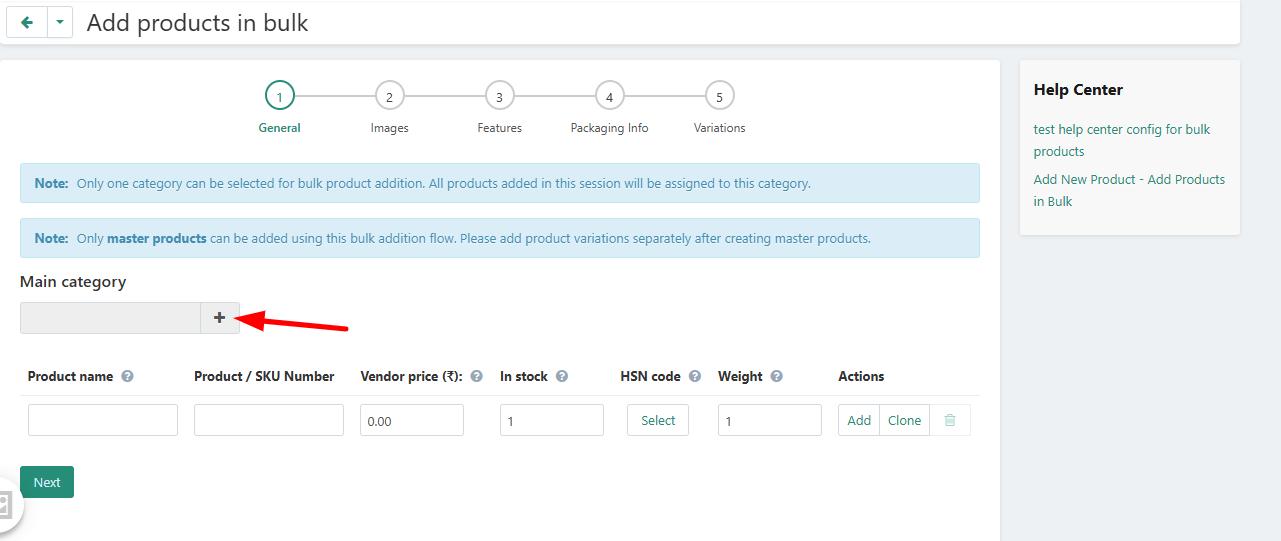
- On the 'Add products in bulk' page, click the + button next to the 'Main category' field.
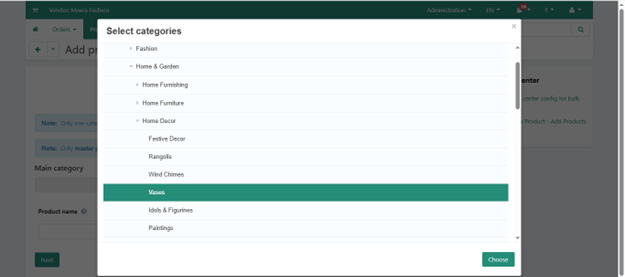
- A pop-up window will appear. Navigate through the category tree to find and select the correct category for the products you are about to add (e.g., Home & Garden > Home Decor > Vases).
- Click Choose to confirm.
2. Enter Product Information
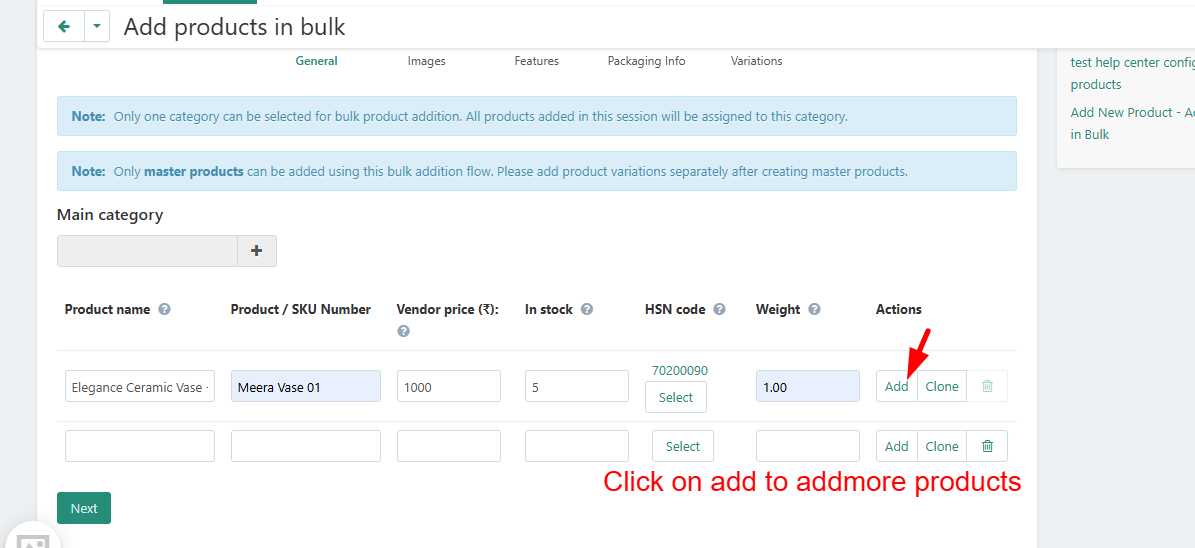
- A table will appear with fields for your product details. Fill in the information for your first product in the first row:
- Product name: The public title of your product.
- Product SKU Number: Your unique internal identifier for this product. This must be unique for every product.
- Vendor price: Your cost price for the item, including all overheads.
- In stock: The initial stock quantity. The minimum required is 5.
- HSN code: Click 'Select', then search for and choose the correct HSN code for your product.
- Weight (kg): The weight of the single product in kilograms (e.g., enter `1.0` for 1kg).
3. Add More Products
- To add another product to the same bulk upload, click the Add button. A new row will appear.
- Fill in the details for your next product. Continue this process for all products belonging to the selected category.
- If you enter a duplicate SKU, the system will display an error message prompting you to change it.
4. Proceed to the Next Step
- Once you have entered the general details for all your products, click the Next button to proceed to Step 2: Image upload.
Frequently Asked Questions (FAQ)
1. Can I upload products for multiple categories in one go?
No. The bulk upload process requires you to select one category per session. If you have products in different categories, you will need to complete the bulk upload process separately for each category.
2. What is the 'Vendor price'?
The 'Vendor price' is your total cost for the product. This should include the purchase price, shipping to the warehouse, and any other overhead costs associated with getting the product ready for sale.
3. What should I do if I don't know my product's HSN code?
The HSN code is a mandatory tax classification code. You can use the search function in the HSN code selector to find the correct code by name or number. If you are still unsure, please consult with your tax advisor or contact our seller support team for guidance.