


 Office Supplies
 Books
Books
 Learning & Education
 School Supplies


Bulk Product Listing - Adding Images
Bulk Product Listing - Step 2 : Images
This guide covers the second step in the Fyaril bulk product upload process: adding Images. After you have entered the general details for your products, you'll need to upload high-quality images. Completing these steps accurately is vital for creating attractive and informative product listings.
Video Tutorial
For a visual walkthrough of uploading bulk images and features, please watch our detailed video tutorial below.
Step-by-Step Instructions
This process continues directly from Step 1 (General). You will see tabs at the top of the page, one for each product you are uploading.
Part 1: Step 2 - Uploading Product Images
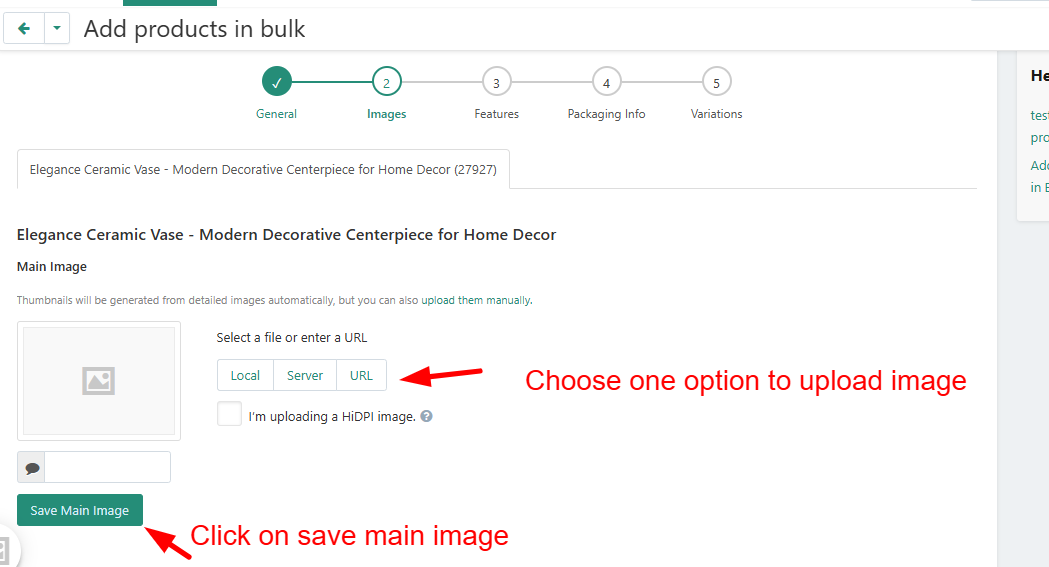
- You will start on the Images tab. Make sure the tab for your first product is selected.
- To upload an image from your computer, click the Local button. You can also upload from a server or a direct URL.
- Select the main product image from your files and upload it.
- Once the image appears, click the Save main image button. This sets it as the primary display image.
- You can add up to 8 images per product by repeating the process for additional/gallery images.
- Click on the tab for the next product and repeat the image upload process until all products have their images.
Frequently Asked Questions (FAQ)
1. How many images should I upload for each product?
While you can upload up to 8 images, we recommend adding at least 3-5 high-quality photos showing the product from different angles, in use, and highlighting key details to give customers a complete view.
2. Why are the feature fields different from my other products?
The feature fields are dynamically generated based on the product category you selected in Step 1. This ensures you provide the most relevant and searchable information for that specific type of item.
3. What if I make a mistake or need to change an image later?
You can always edit a product individually after the bulk upload process is complete. Navigate to 'Products > Update Listed Products' to find and modify any product's details, including images and features.