


 Office Supplies
 Books
Books
 Learning & Education
 School Supplies


Bulk Product Listing - Add Videos
Add Videos to Product Listing in Bulk
Adding videos is the final and a highly effective step in completing your product listing on Fyaril. Product videos can significantly enhance the customer experience by demonstrating how your product works, showcasing its features in action, or telling a brand story. This guide will show you how to easily add videos from platforms like YouTube or Vimeo to your product page.
Video Tutorial
For a visual walkthrough of adding product videos, please watch our detailed video tutorial below.
Step-by-Step Instructions
After completing the Product Info, Packaging Info, Features, and Variations tabs, follow these final steps to add your video.
Part 1: Accessing the Video Gallery
- From the product editing page, navigate to the Video gallery of the product tab on the left-hand menu. This is the last tab in the product creation process.
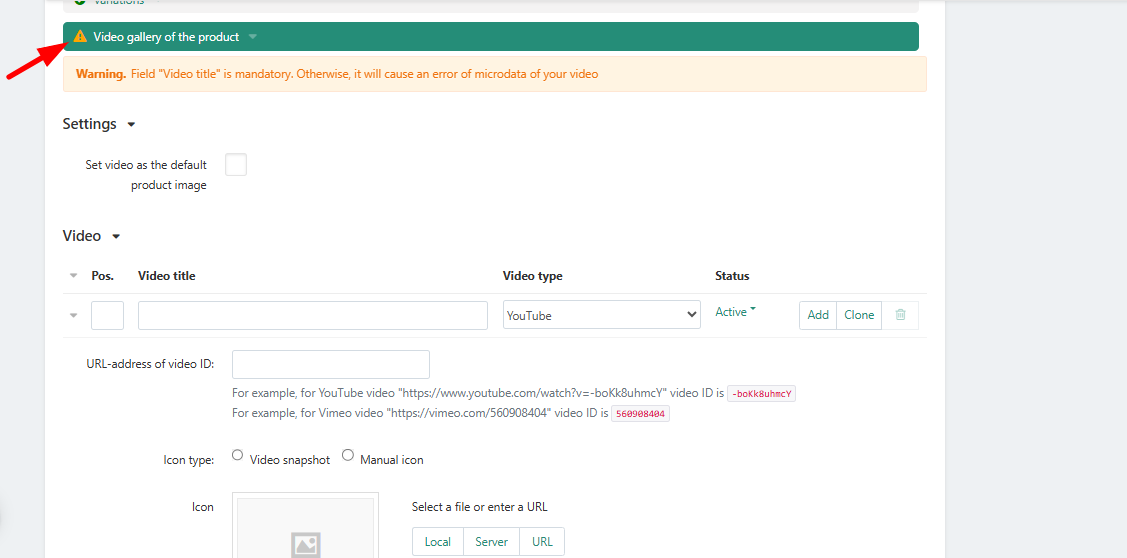
Part 2: Adding Your Video Details
1. Fill in the Video Information
- Video title: Enter a clear and descriptive title for your video.
- Video type: Select the video hosting platform (e.g., YouTube, Vimeo) from the dropdown menu.
- Status: Ensure the status is set to Active for the video to be visible on your product page.
- Video ID *: Paste the unique ID of your video into this field. This is a mandatory field.
- Icon: Upload a thumbnail image for your video. This will be the preview image displayed to customers.
- Description: Write a brief summary of what the video shows. For example, "This video explains how to play the game" or "See our product in action."
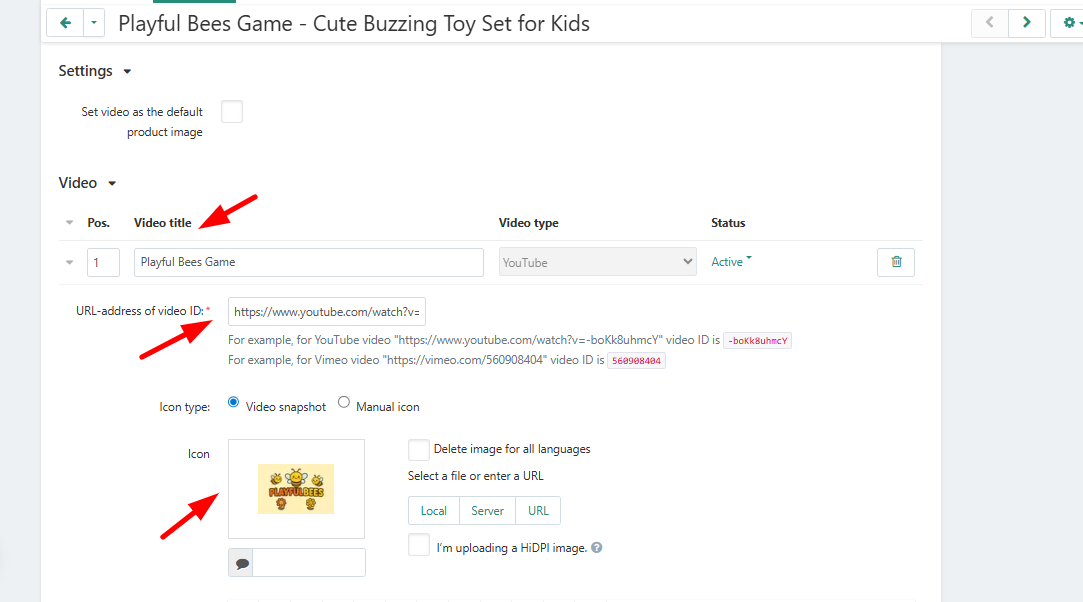
2. Finalize and Save
- After filling in all the details for your video, click the Save button at the top right of the page.
- Once all tabs (Product Info, Packaging, Features, Variations, and Video Gallery) have a green checkmark next to them, your product is fully configured and ready to be published.
Frequently Asked Questions (FAQ)
1. Can I add more than one video to a single product?
Yes, you can add multiple videos to a product. Simply repeat the process of adding a new video for each one you want to include in the gallery.
2. What is the difference between "Video ID" and a URL?
A URL is the full web address of the video page. The Video ID is the unique code within that URL that points directly to the video itself. Our system only requires this ID to embed the video correctly.
3. Why should I add a video to my product listing?
Videos are a powerful tool for increasing customer engagement and boosting sales. They allow you to demonstrate product features, provide tutorials, and build trust with buyers, which can lead to higher conversion rates and fewer product returns.