


 Office Supplies
 Books
Books
 Learning & Education
 School Supplies


Image guidelines
Image Guidelines & Best Practices
On This Page
Image Guidelines to be Followed
Below are the essential guidelines that must be followed when uploading or sharing product images on Fyaril.
Image Properties
- Resolution must be 72 dpi, with a minimum size of 1000 x 1000 pixels.
- File size must be less than 1MB.
- Format must be .jpg, .jpeg, or .webp. (.PNG format should not be used).
- The product should occupy at least 80% of the image area and be centered.
- A minimum of 4 images and a maximum of 8 images are required per product.
- The primary image name must be the same as the product code (e.g., ABCSHIRT.jpg). Subsequent images should be named sequentially (e.g., ABCSHIRT1.jpg).
- You can store images on Dropbox, Google Drive, or OneDrive and share the link, or store them directly on the Fyaril server.
General Content Guidelines
- Images must not show nudity or sexual depiction. For lingerie, the focus must be on the product, not the model's body.
- Images depicting violence or weapons are not allowed (except for illustrating a product like a toy gun).
- Images should not contain packaging unless it is essential to the product description (e.g., fragile items).
- Fyaril has a strict policy against racism. Any images depicting racism will be rejected.
- Religious and political content should be avoided unless it is integral to the product description.
- Brand names, logos, and slogans are only allowed if you own the trademark and have provided documentation to Fyaril for verification.
Photo Shoot Guidelines
- Fyaril encourages using models of all body types, races, and religions. Sellers must be able to provide authorization from all models used.
- Include multiple views: Front, back, side, top, and 45-degree angles as needed for the product.
- Use only appropriate accessories necessary for product illustration. The main focus must always be on the product.
- Lighting must be even, without any shadows or bright spots. Use a light, plain background to clearly showcase the product.
Uploading Images to the Fyaril Vendor Panel
-
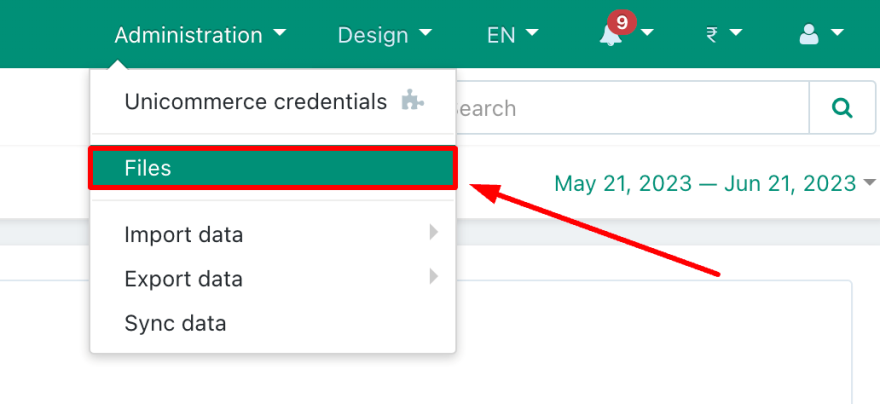
Login to the Fyaril Vendor Panel with your credentials. Once logged in, navigate to Administration > Files.
-
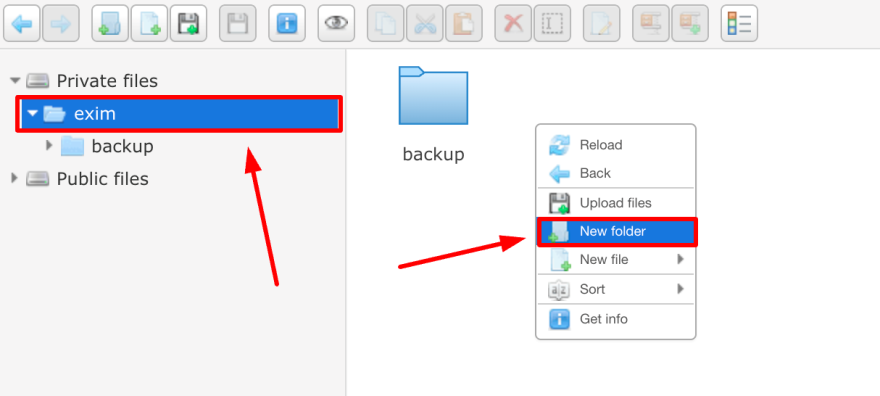
Go to Private Files > Exim. Right-click anywhere in the file area and create a new folder named backup.
-
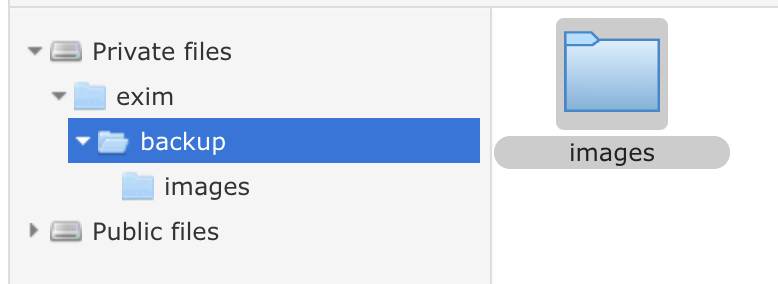
Click on the new backup folder to open it. Inside, create another new folder and name it Images.
-
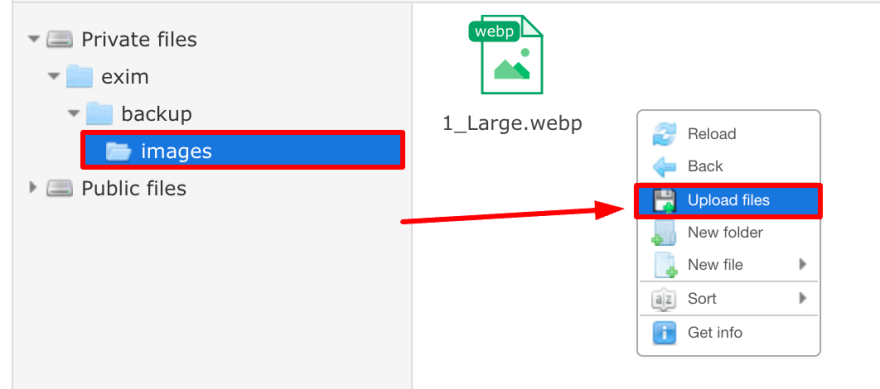
Open the Images folder. To upload your files, right-click and select Upload files. Select the images from your computer to upload them to the server.
Have Additional Questions?
If you have any queries, don't hesitate to get in touch with us through My seller > Message Center, or you can email us at sellers@fyaril.com.