


 Office Supplies
 Books
Books
 Learning & Education
 School Supplies


Onboarding-Step 2: How to Complete KYC
How to Complete KYC Verification & Earn Badges
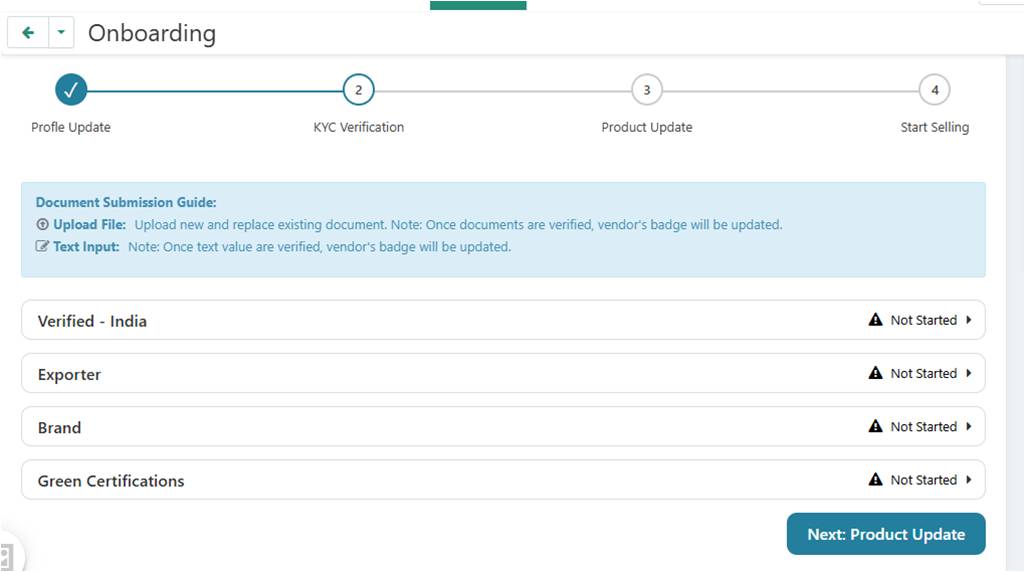
This guide will walk you through the process of submitting your documents during Step 2: KYC Verification in your seller onboarding. Completing this step correctly is essential for getting your store approved and earning valuable vendor badges.
Step-by-Step Video Tutorial
Watch this detailed walkthrough to see exactly how to upload your documents and complete each section of the KYC process.
General Submission Process
The process is the same for all sections on the KYC Verification page:
- Expand a Section: Click on a section (e.g., "Verified - India", "Brand") to open it.
- Upload Files: For each document requirement, click "Choose File" and select the correct file from your computer.
- Enter Text: For fields requiring text input (like a PAN number), type the information directly into the field.
- Save Your Progress: After uploading a file or entering text, you must click the "Save" button next to that specific item. This is crucial to save your progress.
IMPORTANT: Final Submission for Optional Badges
For all optional badges (like "Exporter", "Green Vendor", etc.), there is one final, critical step. After uploading and saving all the documents for that section, a large button will appear at the bottom.
You MUST click the "Submit application for [Badge Name] badge" button to finalize your application. If you do not click this, your documents for that badge will not be sent to our team for review.
What Documents Do I Need?
Each section requires different documents. The "Verified - India" section is mandatory, while others are optional. For a complete list of what to prepare for each badge:
» View the Detailed Guide to All 10 Vendor Badges
Have more questions? Check our FAQ page.