


 Office Supplies
 Books
Books
 Learning & Education
 School Supplies


Single product Update - Add features
How to Add Product Features
After you have entered your product's packaging information, the next step is to add its specific Features. This section allows you to provide detailed attributes about your product, which helps customers find and understand it better. The feature fields are dynamic and change based on the product category you selected, ensuring that the most relevant information is captured for each type of item.
Video Tutorial
For a visual walkthrough of the process, please watch our detailed video tutorial below.
Step-by-Step Instructions
Follow these instructions to add detailed features to your product listing.
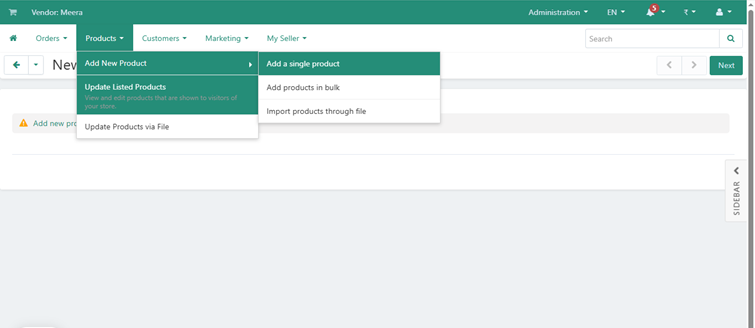
Part 1: Navigating to the Features Tab
- From the product creation or editing page, locate the menu on the left side.
- Click on the Features tab. This tab is typically located after 'Packaging Info'.
Part 2: Completing the Feature Fields
1. Fill in the Details
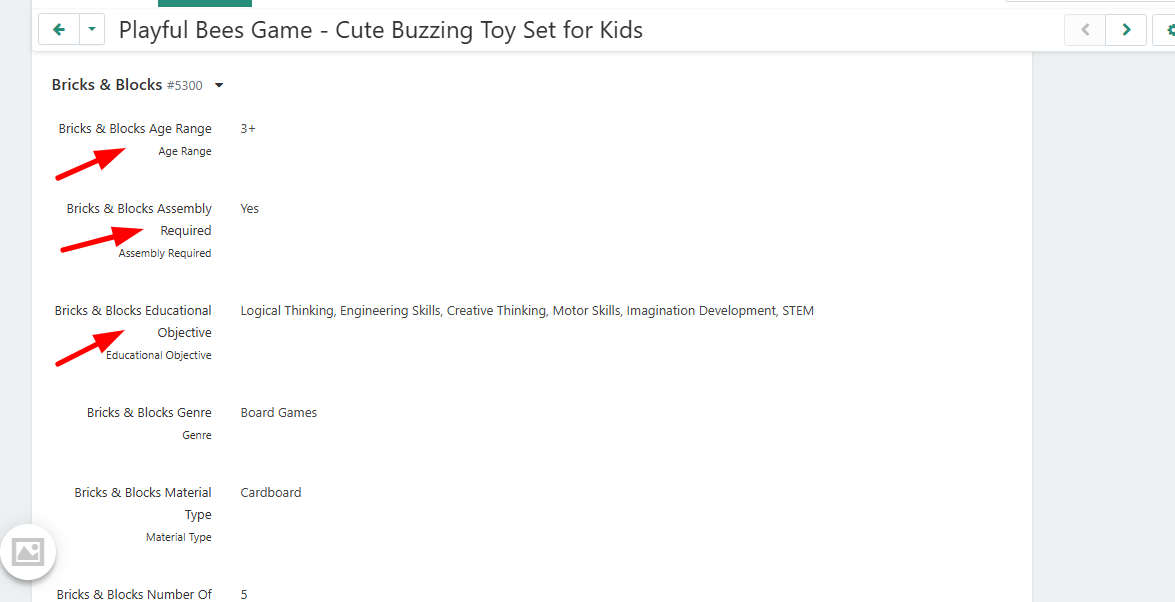
- Review the list of feature fields presented.
- Enter the appropriate information for each field. This may include selecting from dropdowns or typing in values for attributes such as:
- Age Range
- Assembly Required (Yes/No)
- Educational Objective
- Material Type
- Number of Pieces
- Primary Color
- Ensure you complete all mandatory fields, which are typically marked with an asterisk (*).
2. Save Your Changes
- Once you have filled in all the necessary feature details, scroll to the top or bottom of the page.
- Click the Save button to confirm and store the product features.
Frequently Asked Questions (FAQ)
1. The feature fields for my product are wrong. How do I fix this?
The feature fields are determined by the product's main category. If the fields are incorrect, please go back to the 'Product Info' tab and ensure you have selected the most accurate category for your item. Once you update the category, the correct feature fields will appear.
2. Why is it important to fill out the product features?
Detailed features improve your product's visibility in search results and filtered navigation on the marketplace. This data helps customers make confident buying decisions, leading to higher conversion rates and lower return rates.
3. What should I do if I have questions about a specific feature field?
If you are unsure about any of the fields or need assistance, you can contact our seller support team. Email us at sellers@fyaril.com or send a direct message through your seller portal by navigating to My Seller > Message Center.