
Cart is empty


 Office Supplies
 Books
Books
 Learning & Education
 School Supplies


Single product Update - Add package Info
How to Add Product Packaging Information
Once you have created the basic details for your product on Fyaril, the next crucial step is providing accurate Packaging Information. This data is essential because it is used to calculate the correct courier and shipping charges for your orders. Incorrect information can lead to shipping discrepancies.
Video Tutorial
For a visual walk through of entering packaging details, please watch our short video tutorial below.
Step-by-Step Instructions
Follow these steps to ensure your product's shipping information is accurate.
Part 1: Accessing the Packaging Section
- Navigate to your product list and open the product you wish to edit (or continue from the product creation screen).
- On the left-hand side menu of the product editor, click on the Packaging Info tab.
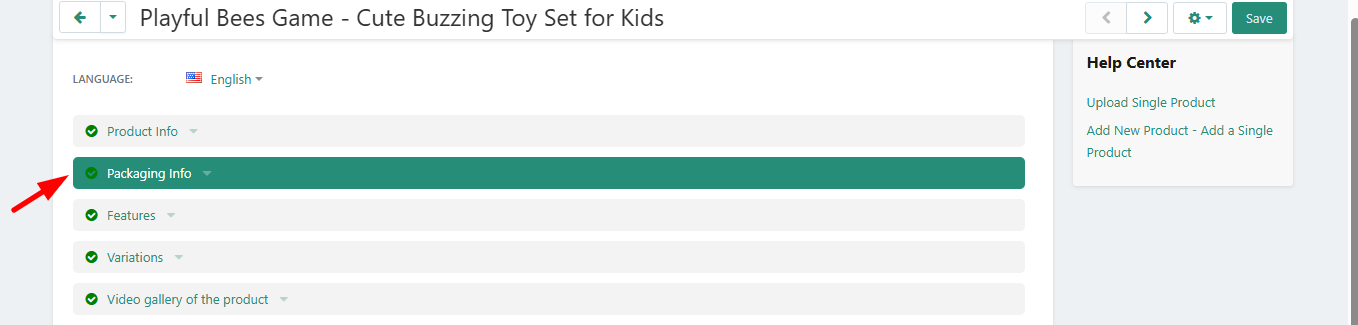
Part 2: Entering Packaging Details
Important: The dimensions entered here must be for the final, packed box ready for shipping, not just the raw product itself. This ensures accurate courier calculations.
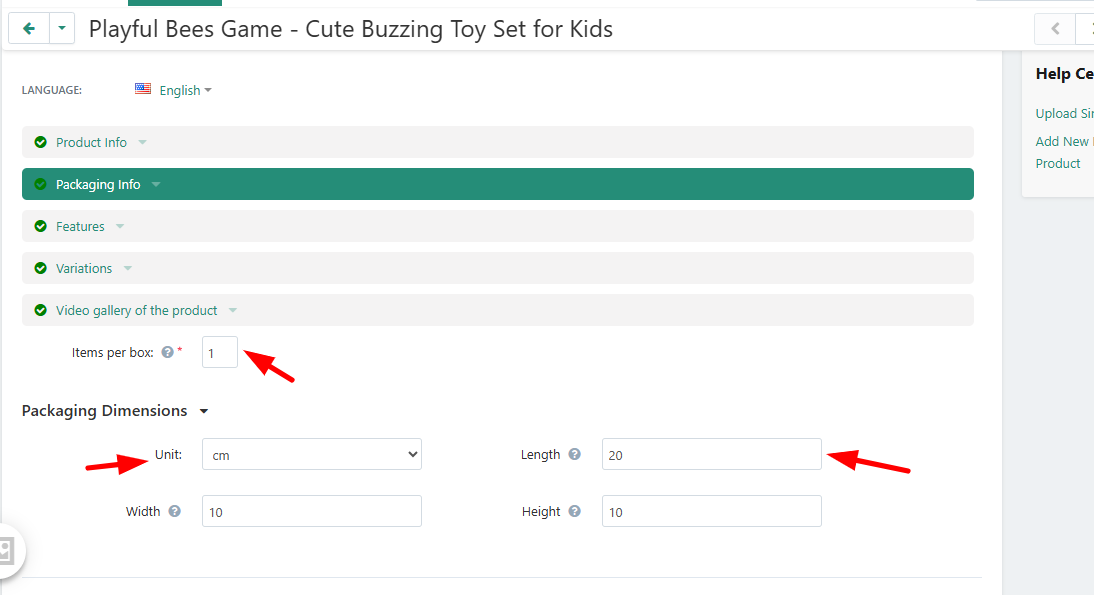
- Items per box *: Enter the number of units of this specific product that fit into one shipping box.
- This must be a numeric value.
- The minimum value is 1. (If you ship products individually, enter 1).
- Packaging Dimensions *: Define the size of the shipping package.
- Unit: Select the measurement unit from the dropdown (e.g., 'cm' for centimeters or 'in' for inches).
- Length, Width, Height: Enter the numeric values for the packed box in the corresponding fields. Ensure these are accurate.
- Once all required fields marked with an asterisk (*) are filled, scroll down and click Save to apply the changes.
Frequently Asked Questions (FAQ)
1. Why is packaging information required?
This information is mandatory because logistics partners use the volumetric weight (calculated from these dimensions) to determine shipping costs. Accurate data prevents overcharging or undercharging for shipping.
2. What does "Items per box" mean?
This refers to how many units of the product you are currently editing are packed into a single shipping container. For most direct-to-consumer sales, this is usually "1".
3. Can I use any unit of measurement?
You must use the units provided in the dropdown menu (such as cm or inches) and ensure your numerical entries correspond accurately to that unit.
Contact us
- Reallinjen 22, Lund
- +46-763356363
- +46-760211456
- Mon-Sun 9.00 - 18.00
- info@fyaril.com
- View on map
About us
Business Account
Customer Service
Seller Zone