


 Office Supplies
 Books
Books
 Learning & Education
 School Supplies


Update Video
How to Add or Update Product Videos
Adding videos to your product listings is a powerful way to engage customers, showcase your products in action, and provide more detail than static images can offer. This guide will walk you through the simple process of adding or updating videos for your products directly from your Fyaril seller dashboard.
Video Tutorial
For a visual walkthrough of the process, please watch our detailed video tutorial below.
Step-by-Step Instructions
Follow these steps to add a YouTube or Vimeo video to any of your listed products.
Part 1: Accessing the Video Update Page
- From your seller dashboard, navigate to Products > Update Listed Products.
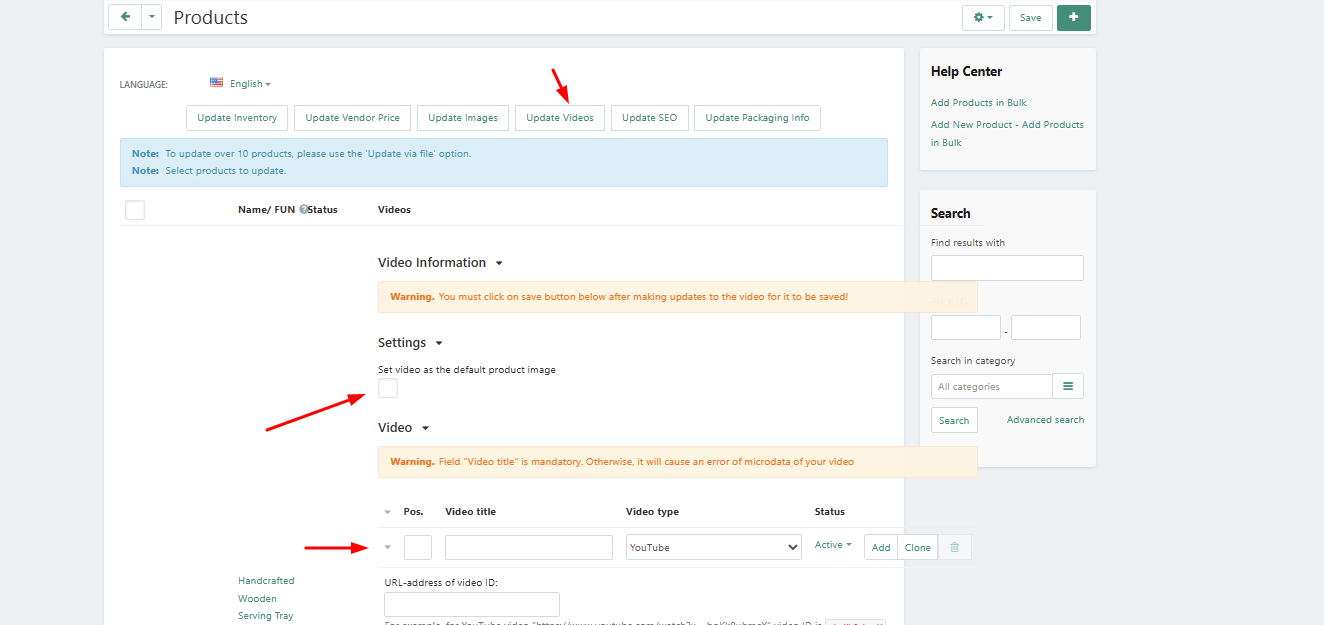
- In the menu above your product list, click the Update Videos button.
- The page will refresh to show each product with a "Video Information" dropdown.
Part 2: Adding the Video Details
- Locate the product you want to add a video to and click the Video Information dropdown to expand the options.
- Position: Enter a number to set the display order (e.g., '1' for the first video).
- Video Title: Enter a clear and descriptive title for your video. This field is mandatory.
- Video Type: Select either YouTube or Vimeo from the dropdown menu.
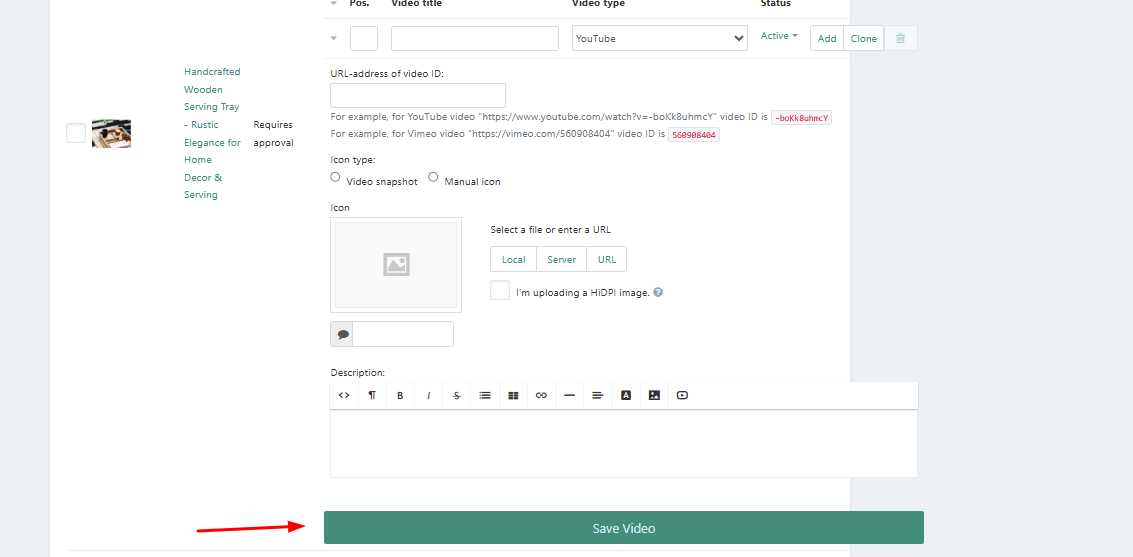
- URL-address of video ID: Paste the unique Video ID here (e.g., 9FmoYwn4JgM). Do not paste the full URL.
- For YouTube: If the URL is
https://www.youtube.com/watch?v=9FmoYwn4JgM, the Video ID is 9FmoYwn4JgM. - For Vimeo: If the URL is
https://vimeo.com/123456789, the Video ID is 123456789.
- For YouTube: If the URL is
- Icon Type: Choose either "Video snapshot" or "Manual icon".
- Description: Add a brief description of what the video shows.
- Click the Save Video button for that specific product.
Frequently Asked Questions (FAQ)
1. Why is the "Video Title" field mandatory?
The video title is essential for SEO (Search Engine Optimization) and accessibility. It helps search engines find your products and helps customers understand the content before clicking.
2. What happens if I paste the full URL instead of the ID?
The video player will break and show an error. You must use only the ID (the string of letters and numbers at the end of the link).
3. What does "Set video as default product image" do?
This setting puts the video thumbnail as the first thing customers see on your product page. We recommend keeping a high-quality photo as the primary image unless the video is the main selling feature.