


 Office Supplies
 Books
Books
 Learning & Education
 School Supplies


Onboarding-Step 1: Profile Update
Vendor Onboarding - Step 1: Profile Update
Welcome to the Fyaril family! This guide is a complete instruction manual to help you successfully complete the first stage of your seller onboarding: Profile Update. Follow these steps carefully to set up your seller account and prepare to start selling.
Video Tutorial
For a visual walkthrough of the process, please watch our detailed video tutorial below.
Step-by-Step Instructions
Part 1: Accessing the Onboarding Page
- Log in to your Fyaril Vendor Administration Panel.
- In the top navigation menu, hover your cursor over My Seller.
- From the dropdown menu that appears, click on Onboarding.
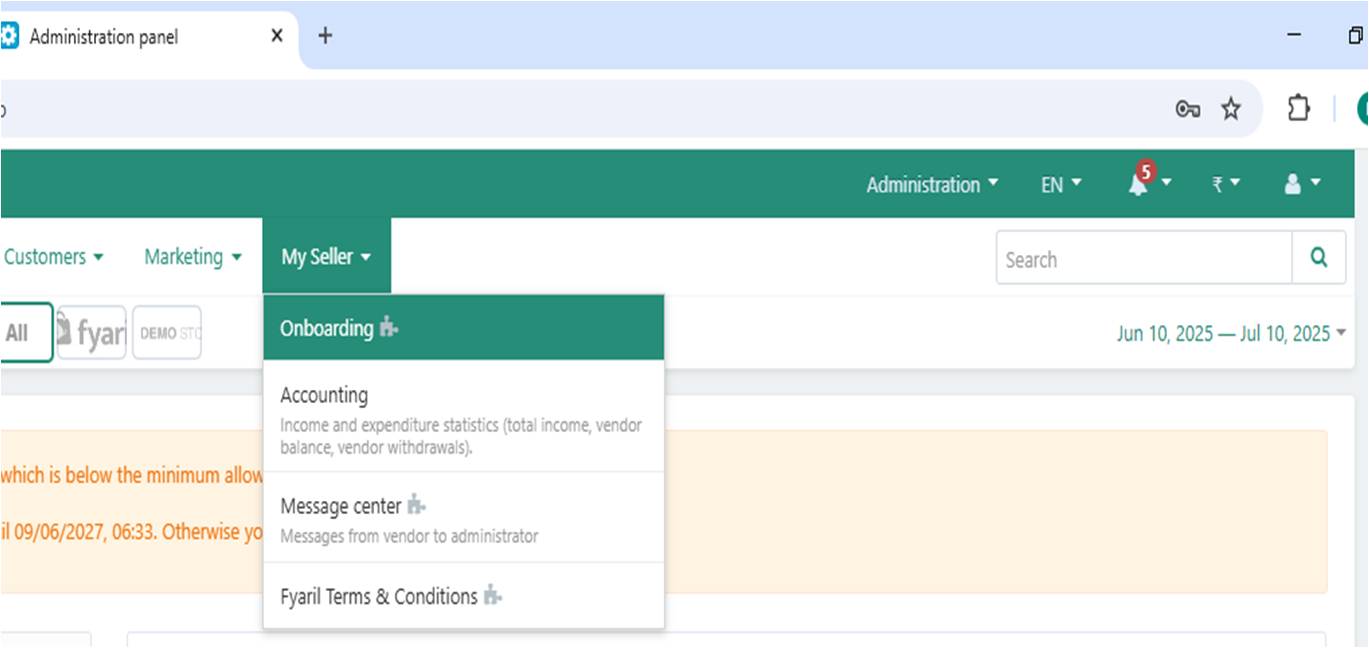
Part 2: Completing Your Profile Update
You will land on the main Onboarding page, which is divided into four stages. The first stage, Profile Update, is highlighted. This stage contains five sections that you must complete.
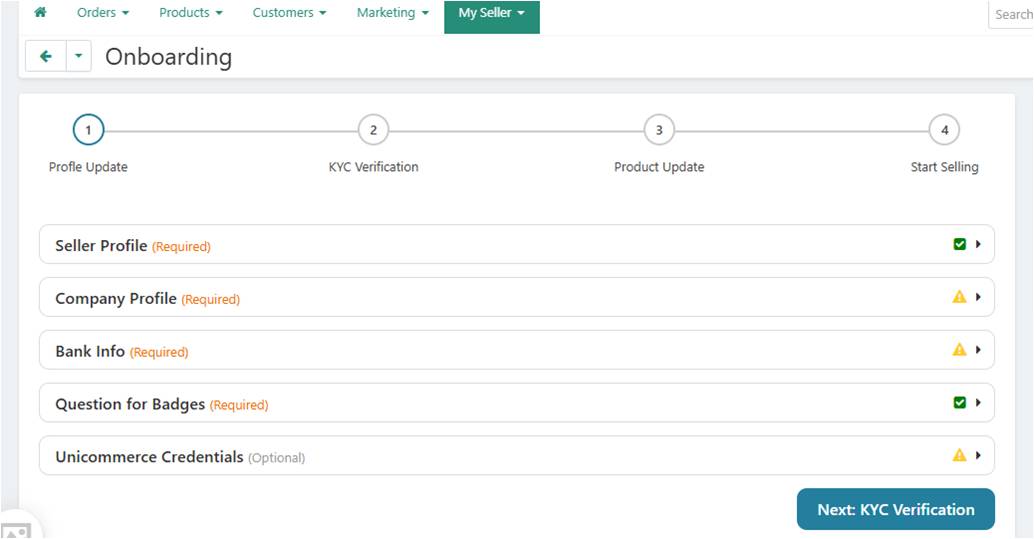
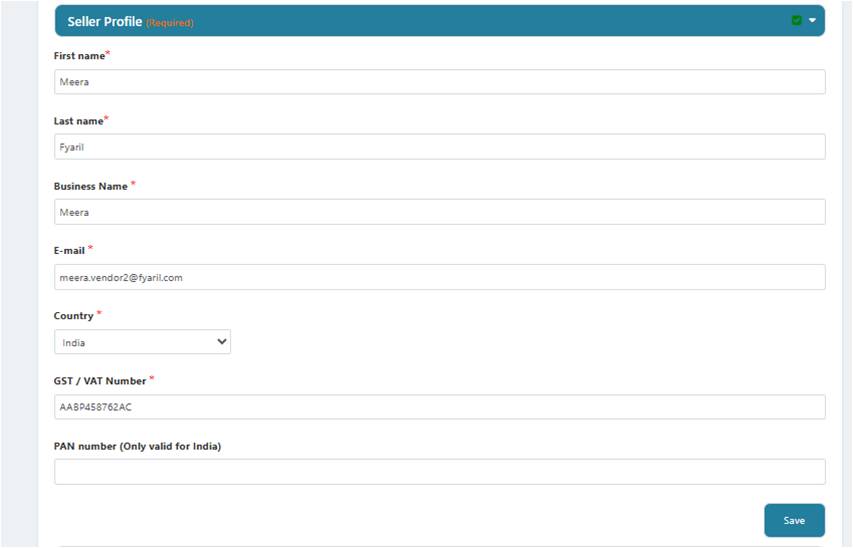
1. Seller Profile (Required)
This section captures your basic identification and business details.
- First Name & Last Name: Enter your full name.
- Business Name: The official name of your business.
- E-mail: Your primary business email address.
- Country: Select your country from the dropdown.
- GST / VAT Number: Enter your Goods and Services Tax or Value Added Tax number.
- PAN Number: If applicable (for India), enter your Permanent Account Number.
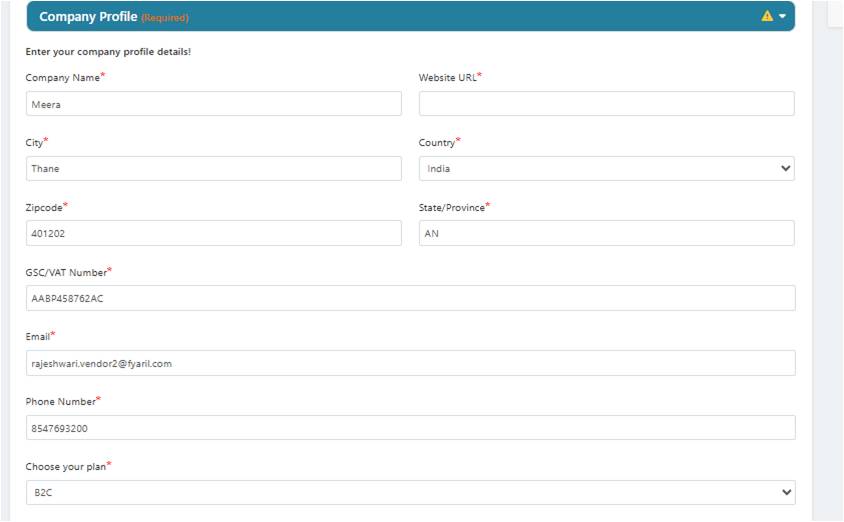
2. Company Profile (Required)
Provide comprehensive details about your company's operations and branding.
- Company Name & Website URL: Your company's registered name and official website.
- Address: Your full business address, including City, Country, Zipcode, and State/Province.
- Contact Info: GSC/VAT number, email, and phone number.
- Choose your plan: Select your Fyaril selling plan (e.g., B2C).
- Currency: Select your preferred currency (e.g., Indian Rupees).
- Description: Provide a detailed description of your company and the products you offer.
- Logo for the customer area & invoices: Upload your company logo. This logo will appear on your storefront and on all customer invoices. You can upload a local file, from a server, or via a URL.
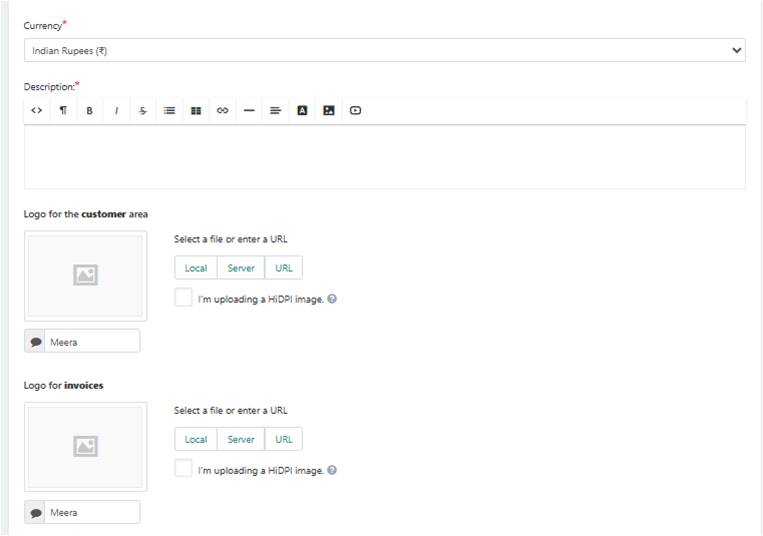
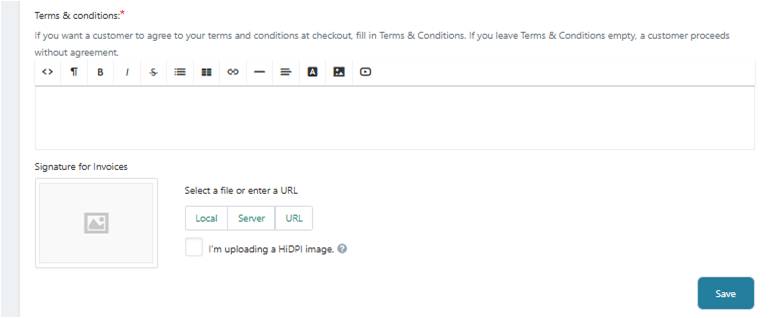
- Terms & conditions: Input your company's terms and conditions related to sales, returns, and refunds. This information will be available to customers at checkout.
- Signature for invoices: Upload an image of your authorized signature. This will be automatically added to your invoices.
Click Save after filling all the details.
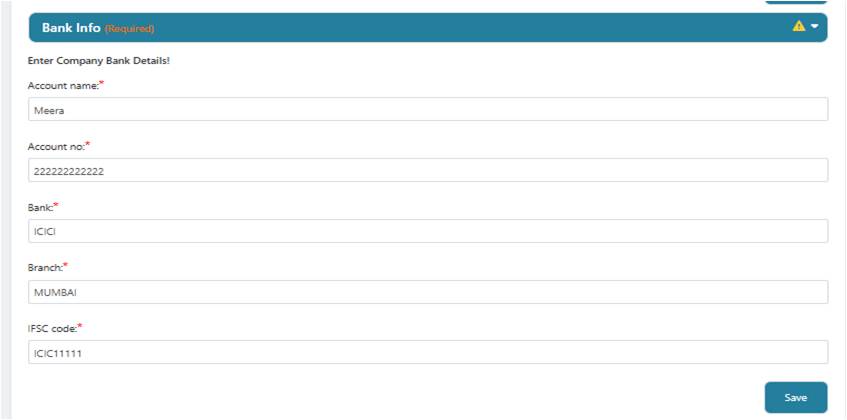
3. Bank Info (Required)
Enter the bank account information where your Fyaril earnings will be deposited.
- Account name: The name of the account holder as it appears on bank records.
- Account no.: Your complete bank account number.
- Bank & Branch: The name of your bank and its specific branch.
- IFSC code: The IFSC code of your bank branch.
Click Save to confirm your details.
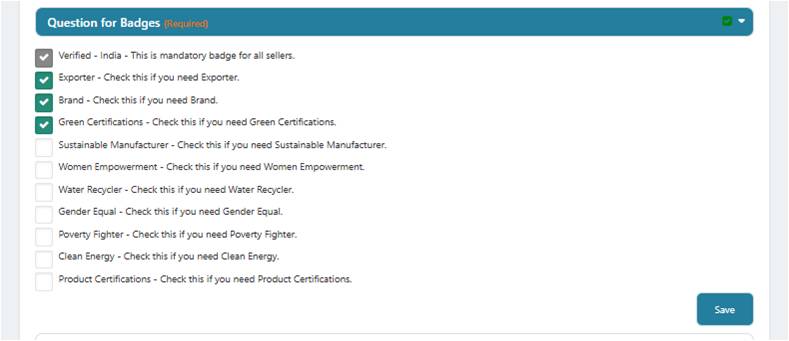
4. Question for Badges (Required)
Badges help customers identify your brand's unique values. Select all that apply to your business.
- Verified - India: This is a mandatory badge for all sellers.
- Select other relevant badges like Exporter, Brand, Green Certifications, etc. These highlight your specializations and commitments.
Click Save to apply your chosen badges.
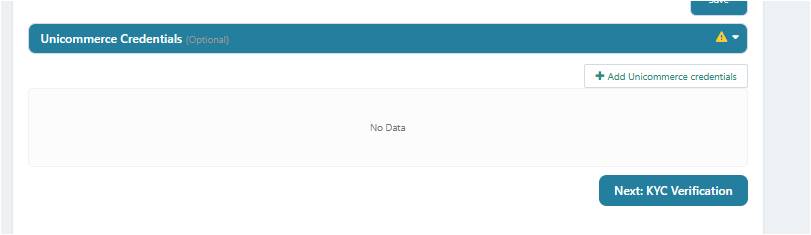
5. Unicommerce Credentials (Optional)
If you use Unicommerce to manage your multi-channel e-commerce operations, you can integrate it here by clicking + Add Unicommerce credentials.
Part 3: Next Steps - KYC Verification
Once all required sections under Profile Update are complete and show a green checkmark, you are ready to move to the next stage.
Click the Next: KYC Verification button at the bottom of the page.
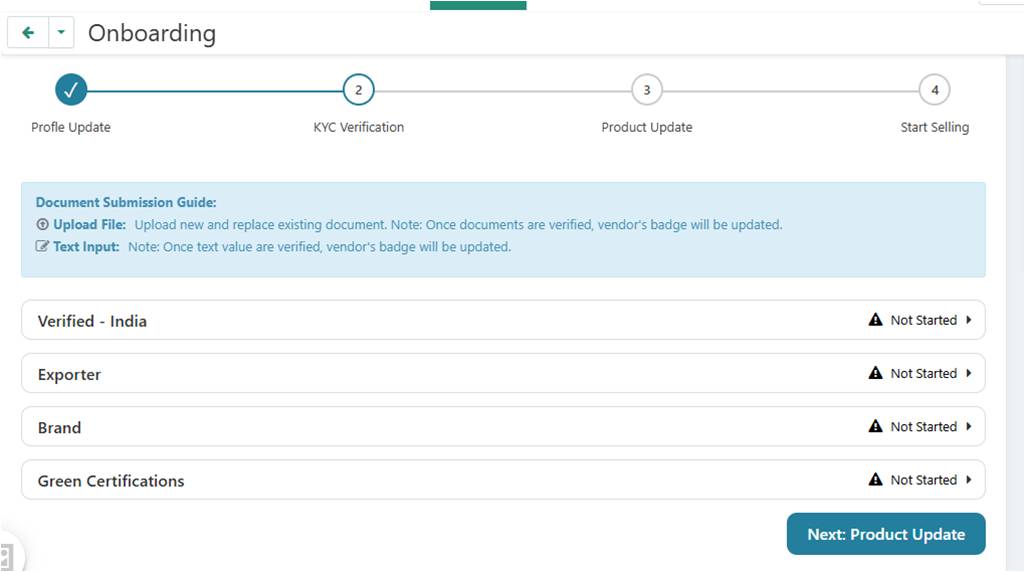
You will be taken to the KYC Verification page, where you will need to upload the necessary documents to verify your identity and business. Follow the on-screen instructions in the Document Submission Guide to complete this step.
Congratulations on completing the first step of your onboarding! If you have any questions, please contact our seller support team.