


 Office Supplies
 Books
Books
 Learning & Education
 School Supplies


AI Variation Images for Product Variations
AI Variation Images for Product Variations
Screenshot: Where to start variation AI images
Open the product Variations section, use the variations action controls, and select Generate variation images with AI in the Add variations flow when you want AI images for the variation products.
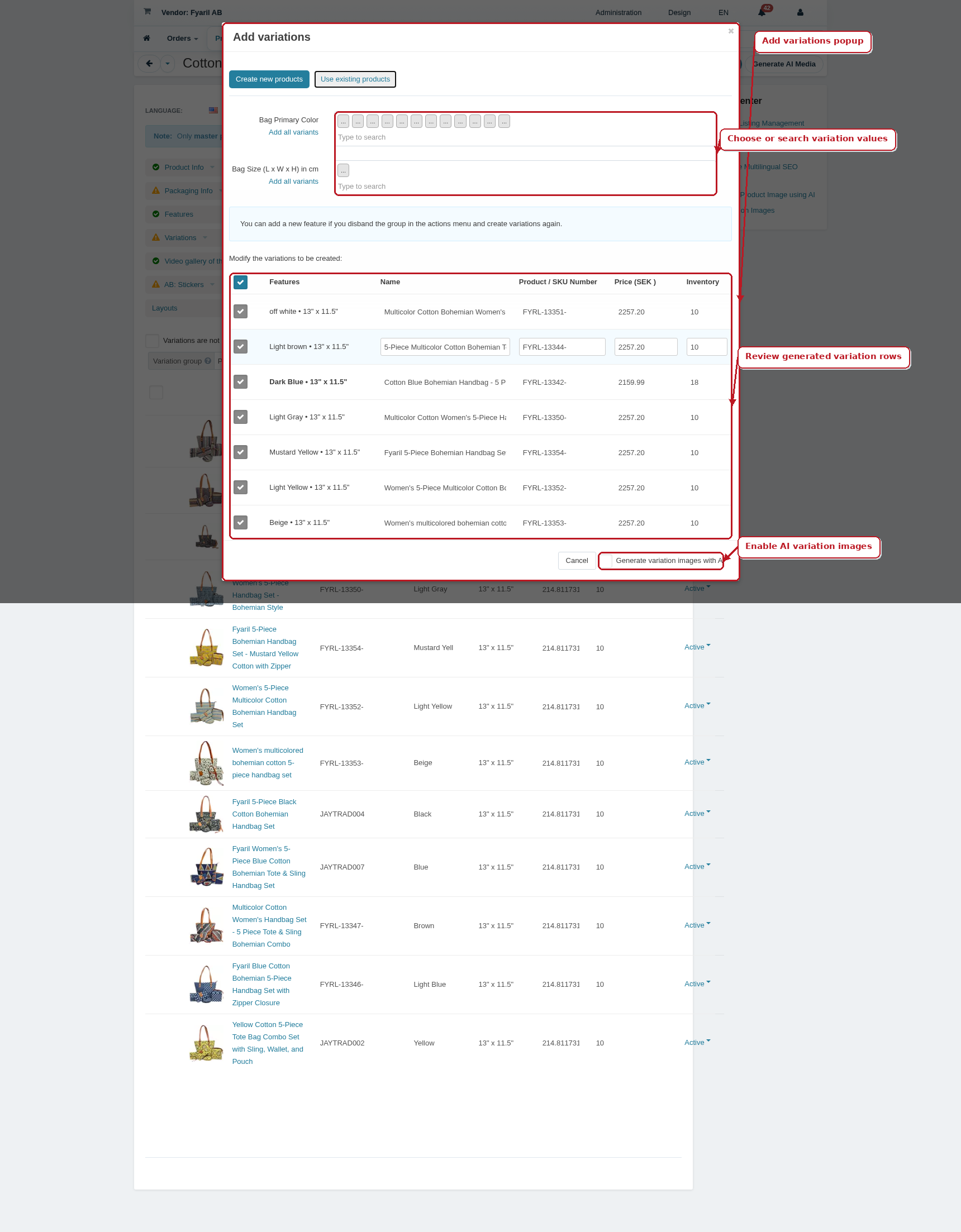
This guide explains the Generate variation images with AI checkbox in the Add variations popup. It helps sellers create separate images for generated variation products, especially where color or design differences matter.
Balance rule: Each generated variation image is an AI media job. Before AI variation image jobs start, Fyaril calculates the required balance for the full variation image set. If your available seller balance is lower than the required amount, no AI variation image jobs are created and you must add funds first.
Where to find it
- Open a product in the Vendor Panel.
- Go to the product details section.
- Find the Variations row.
- Click Add variations.
- At the bottom of the popup, select Generate variation images with AI before creating the variations.
What it does
- Fyaril first creates or links the variation products.
- The system detects the color variation feature where available.
- For each target variation product, Fyaril creates an AI image job.
- The prompt instructs AI to keep the original product identity unchanged and use only the target variation color.
- The generated image is saved to the relevant variation product listing.
When to use it
- Use it for color, design, pattern, finish, or style variations where buyers need to see the difference.
- Do not use it when variations do not visually change the product.
- For very large variation sets, add enough balance before running the job because one image job may be created per variation product.
Image naming and alt text
AI-generated variation images are saved with product-name based filenames, and the image alt text is set to the product name. This helps buyers, accessibility tools, and search engines understand the image correctly.
If the checkbox is not visible
- AI media generation may be disabled for your vendor account by admin policy.
- Your seller account may not have access to AI media features.
- Contact Fyaril support if you believe the option should be available.