


 Office Supplies
 Books
Books
 Learning & Education
 School Supplies


Vendor Accounting and Withdrawal Guide
 Vendor Accounting and Withdrawal Guide
This guide explains how to use the seller accounting area, read your statements, download accounting records, and request withdrawals from your available seller balance.
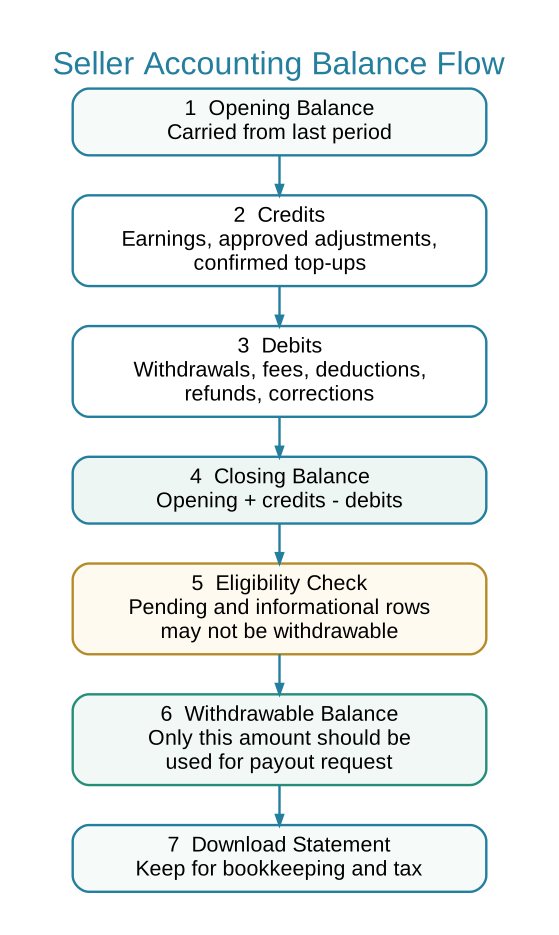
 Accounting Process at a Glance
This flowchart shows how Fyaril converts seller activity into statement balance and withdrawable balance. Read it from top to bottom: opening balance plus posted credits minus posted debits becomes closing balance; then eligibility rules decide what can actually be withdrawn.
Where to Find Accounting
- Log in to your Fyaril Vendor Administration Panel.
- Open My Seller > Accounting.
- You will see the accounting page with statement tabs, transaction history, balance withdrawal tools, and statement download options.
 Main Accounting Tabs
| Tab | What It Shows | When to Use It |
|---|---|---|
| Transactions | Ledger rows for seller earnings, deductions, adjustments, fees, top-ups, and payout-related entries. | Use this tab to understand how your seller balance was calculated. |
| Balance Withdrawal | Withdrawal request form and withdrawal history. | Use this tab when you want to request payout from your available balance. |
| Add Funds | Seller balance top-up area for paid seller services such as AI media generation. | Use this tab when you need a positive balance for paid seller tools. |
How to Read Your Statement
Your statement is a ledger. Each row explains one movement or informational event in your seller account. Read the page from the selected period and check these values carefully:
- Opening Balance: Balance carried forward from before the selected period.
- Credits: Amounts added to your seller account, such as payable order earnings, approved adjustments, or successful Add Funds top-ups.
- Debits: Amounts deducted from your seller account, such as withdrawals, fees, corrections, or other deductions.
- Closing Balance: Opening balance plus credits minus debits for the selected period.
- Withdrawable Balance: Amount currently available for withdrawal after platform rules, pending settlements, and non-posting rows are considered.
- Pending Settlement: Amount not yet available for withdrawal because it is still waiting for settlement, approval, or completion.
Common Statement Row Types
| Row Type | Meaning | Accounting Impact |
|---|---|---|
| Order earning | Seller earning from an order after marketplace calculations. | Usually credit, once eligible. |
| Commission, fee, or deduction | Marketplace fee, correction, refund impact, or other deduction. | Debit. |
| Withdrawal request | A payout request submitted by the seller. | May be pending until approved and settled. |
| Approved withdrawal | Marketplace has approved the payout. | Debit when posted/settled. |
| Declined withdrawal | A payout request was rejected and should not be paid. | Normally informational/non-posting. |
| Add Funds top-up | Seller added balance for paid seller services. | Credit after successful payment confirmation or admin approval for bank transfer. |
How to Filter and Download Statements
- Open My Seller > Accounting.
- Use the date range or period filters to choose the accounting period you want to review.
- Use available filters such as payout type, approval status, or transaction type when you need a narrower view.
- Click Show Statements to refresh the statement view for your selected filters.
- Click Download Statements when you need a copy for bookkeeping, tax, audit, or reconciliation.
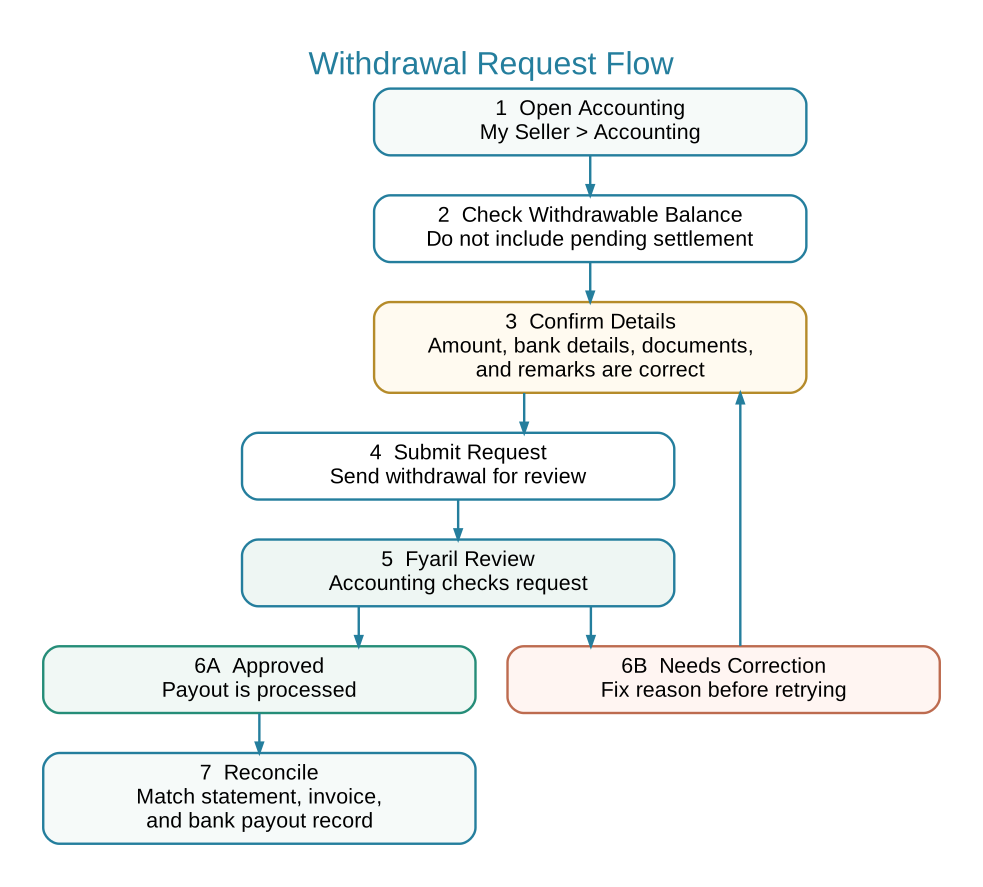
 Withdrawal Process at a Glance
This simple top-to-bottom flowchart shows the correct withdrawal path. The most important step is before submission: confirm the withdrawable balance, payout details, and documents first.
Before You Request a Withdrawal
Check the following before submitting a withdrawal request:
- Your vendor profile and payout details are complete and accurate.
- Your bank account or payout method information is correct.
- Your requested withdrawal amount does not exceed your withdrawable balance.
- You have reviewed pending settlements and deductions.
- Your invoices and required payout documents are available where required.
- The requested amount matches the amount you expect Fyaril to pay out.
How to Request Withdrawal
- Go to My Seller > Accounting.
- Open the Balance Withdrawal tab.
- Review the amount available for withdrawal.
- Enter the withdrawal amount you want to request.
- Add clear remarks if the payout needs explanation, such as invoice reference, settlement period, or special note for accounting.
- Submit the withdrawal request.
- Wait for marketplace accounting review. Fyaril may approve, decline, or ask for correction.
- After approval and bank/payment settlement, check the statement again to confirm the payout row and final balance.
Withdrawal Statuses
| Status | Meaning | Seller Action |
|---|---|---|
| Pending / Open | Your request has been submitted and is waiting for review or settlement. | Wait. Do not submit another request for the same amount. |
| Approved | Marketplace accounting accepted the withdrawal request. | Wait for payout settlement and keep records. |
| Settled / Paid | The payout has been processed and reflected in accounting. | Reconcile with your bank record and downloaded statement. |
| Declined | The request was rejected because amount, documents, payout details, or eligibility did not match requirements. | Read the reason, correct the issue, and submit a new request only if needed. |
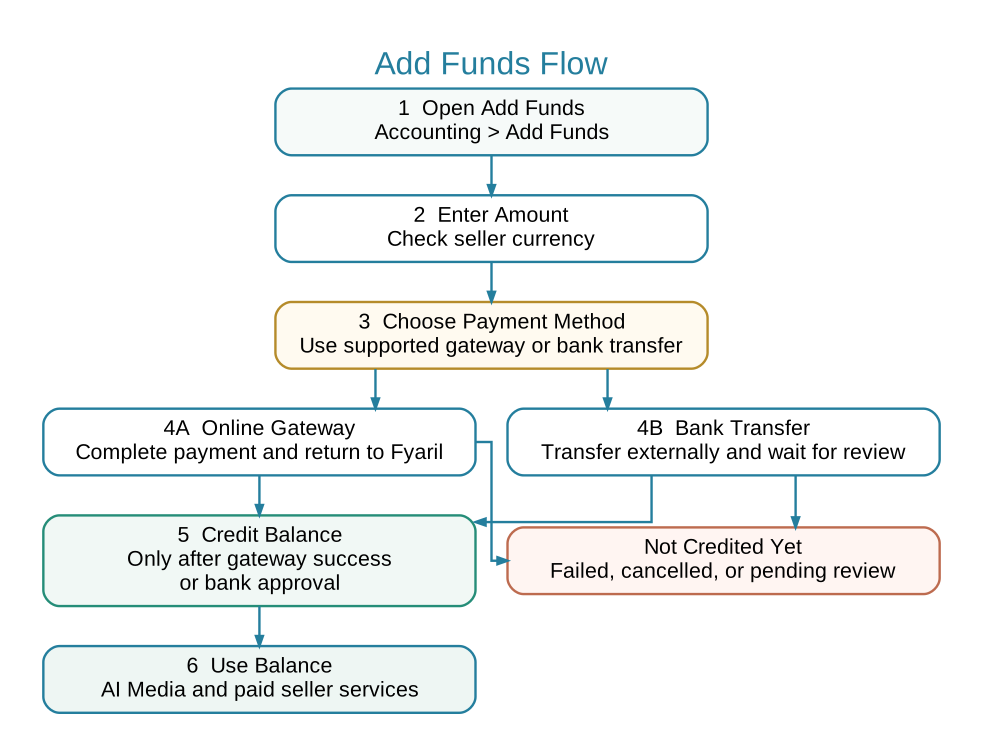
Add Funds Process at a Glance
This simple top-to-bottom flowchart explains when seller top-ups become part of the balance. Payment attempts do not credit funds by themselves; credit happens only after successful online gateway confirmation or bank transfer approval.
How to Reconcile Your Accounting
- Choose the accounting period you want to reconcile.
- Download the statement for that period.
- Match order earning credits with your order records.
- Match fees, deductions, refunds, and adjustments with the corresponding order or accounting note.
- Match withdrawal debits with bank payout receipts.
- Confirm that opening balance plus credits minus debits equals closing balance.
- If a row is unclear, note the reference number and contact Fyaril support before submitting another withdrawal request.
 Common Mistakes to Avoid
- Requesting more than the withdrawable balance.
- Submitting a second withdrawal while the first one is still pending.
- Ignoring pending settlements and assuming every visible row is already withdrawable.
- Using outdated or incorrect bank details.
- Not keeping statement downloads and payout confirmations for your accounting records.
- Requesting withdrawal before required invoices or documents are ready.
Need help?
Contact marketplace accounting support via Message Center or email sellers@fyaril.com. Include the statement period, transaction reference, withdrawal request reference, and screenshots when possible.